
This article explains the basic gameplay of the ear training app “Harmonize.”
What Is Harmonize Like?
If I had to explain Harmonize in one sentence, it would be this:
- Train your ear by doing something similar to tuning an instrument.
Erhu player Kobayashi-san also explains the gameplay clearly in this video:
Start with the “Double Stop” Mode
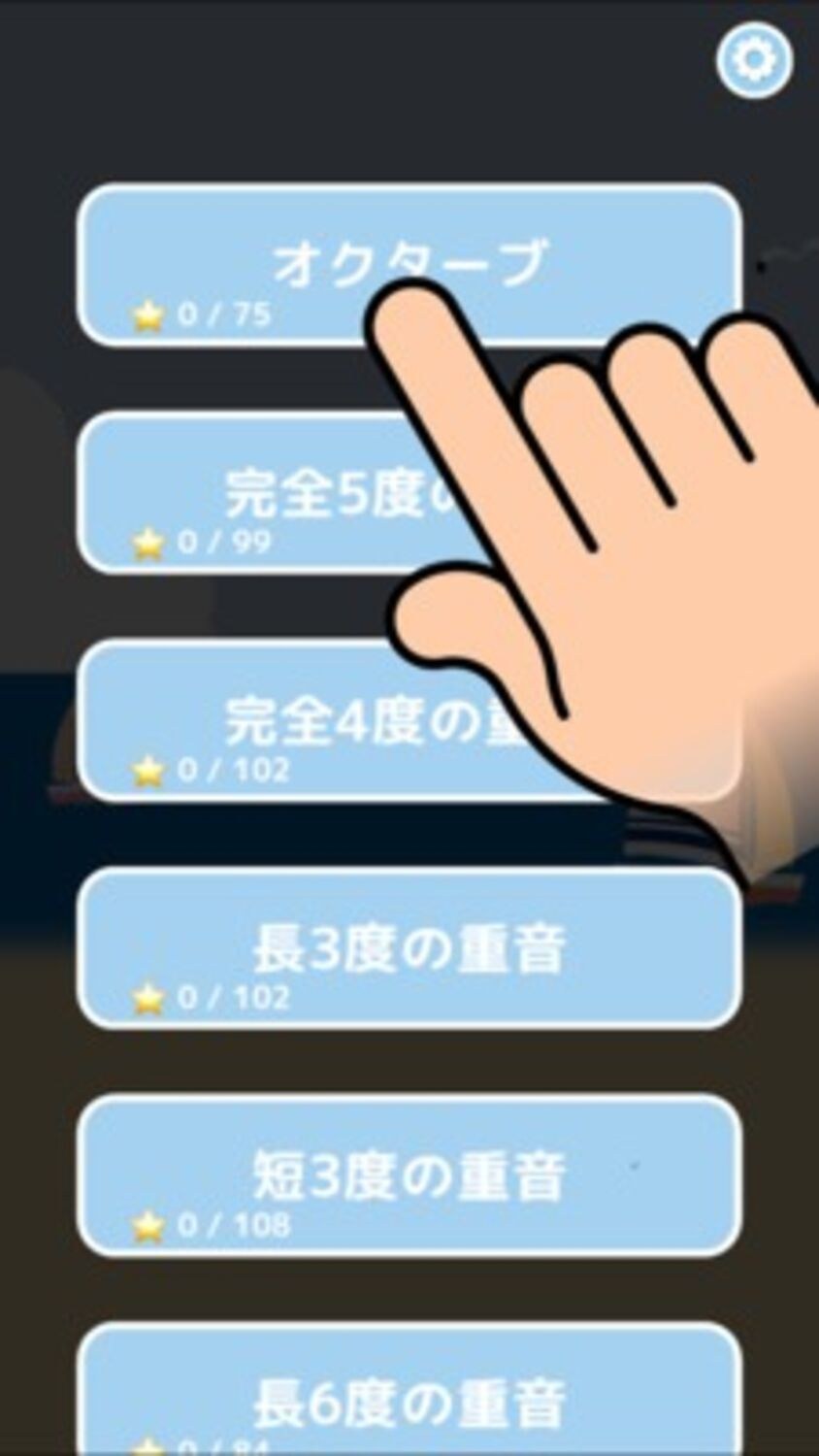
Now let’s go through the gameplay step by step. On the home screen, tap “Double Stop,” and you’ll see a list of categories like the one below. If this is your first time, start from the top one, “Unison” — the easiest challenge, where you match two notes at exactly the same pitch.
The Pitch-Matching Screen
The screen with “Kakifurya” and “Ebifurya” is the pitch-matching screen. The chord you hear when the screen opens is the correct chord you are trying to match. Your goal is to tune your note until it matches that chord.

Touch the Screen and Move the Pitch
Touch somewhere around the middle of the game screen and you’ll hear a sound. Then, without lifting your finger, slide upward, and the pitch gradually rises.

If you want to raise the pitch further, lift your finger near the top of the screen, touch lower down again, and slide upward once more.
While your finger is touching the screen, two notes sound at the same time. Kakifurya is the fixed note, and Ebifurya is the note whose pitch changes with your finger.
The key is to adjust the pitch so that the wobbling wolf tone disappears. When the harmony is clean, that wavering sound becomes much less noticeable.
When they are not matched, the sound feels cloudy and unstable.
At first, it may be hard to hear the difference accurately, but you will get used to it with practice. Keep trying and do not give up.
Check Your Result
When you feel that your pitch matches the correct chord, tap the “GO” button in the lower-right to move to the result screen. There you’ll see the number of stars and the cents, which show how far off you were.
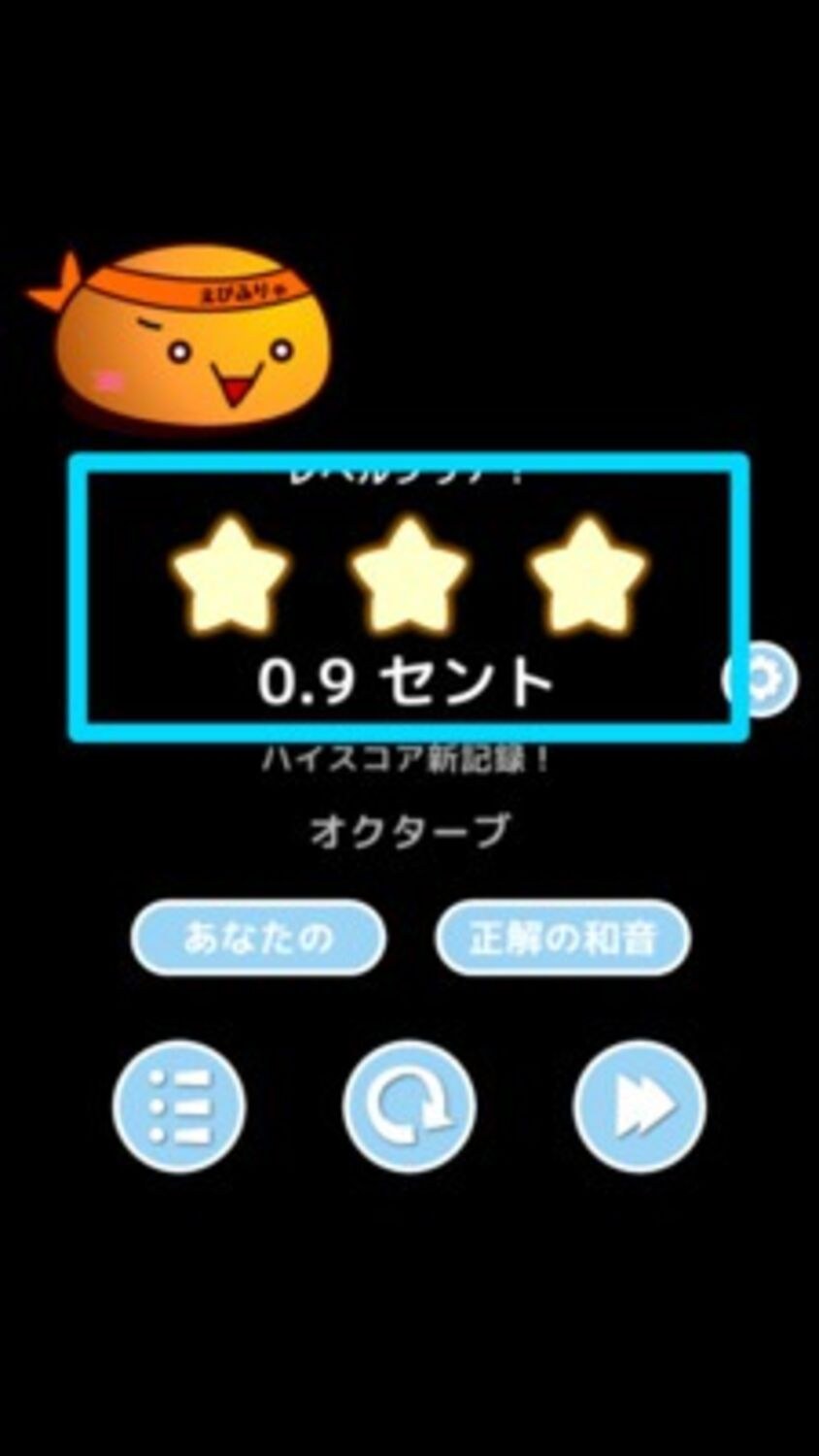
If you are not confident in your ear yet, start by aiming for just one star and keep moving forward. The author could only get one star at first, but can now get three stars consistently. By the way, when a professional musician tried this app, they got three stars on the very first try. Professionals are impressive.
What Does “Cent” Mean on the Result Screen?
The closer the cent value is to zero, the closer you are to the correct chord.
That is the end of this basic guide to Harmonize. Once you get used to it, try not only “Unison” but also other double stops such as “Octave,” “Perfect Fifth,” and “Major Third.”