Answers to common questions and hidden tips for Super Memo.
Tags
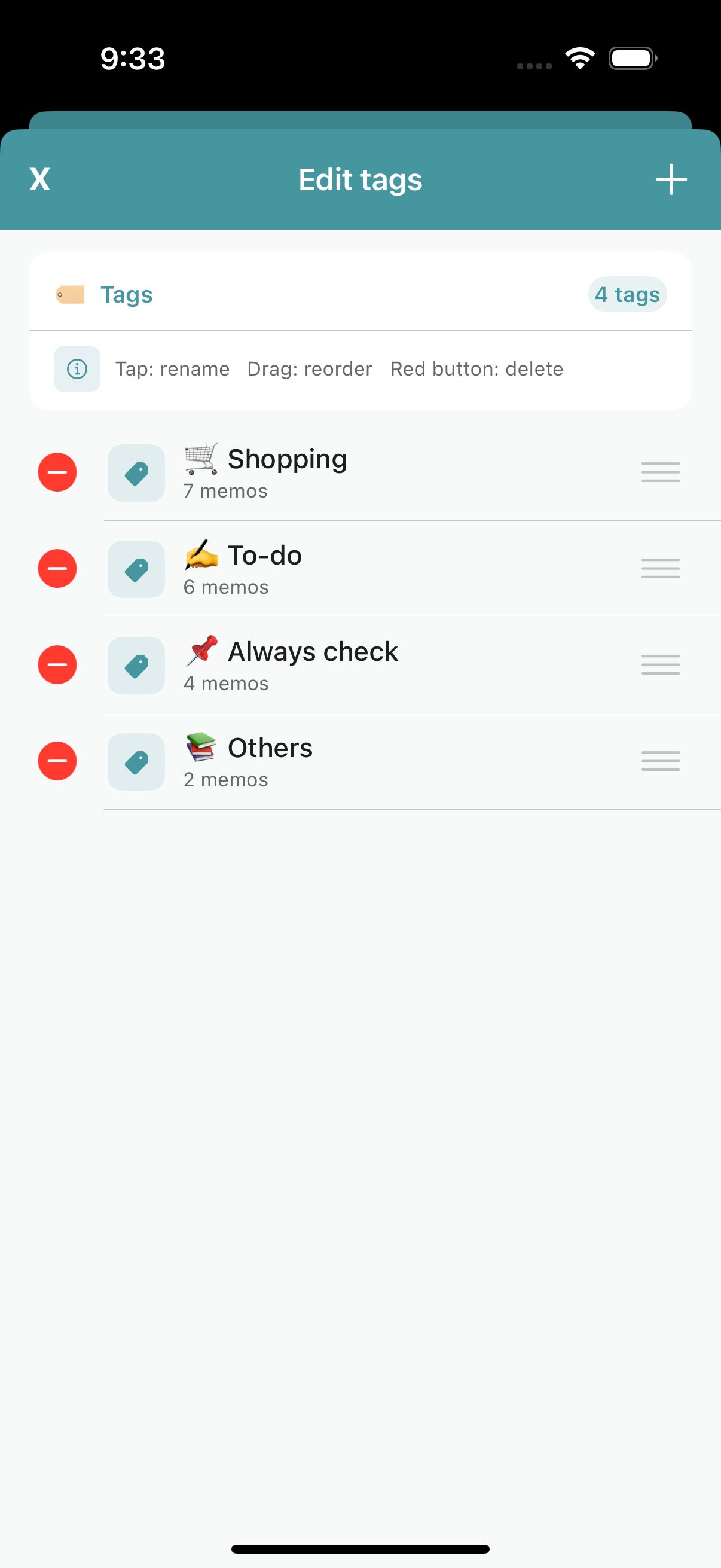
Q. How do I add or delete a tag?
The tag feature lets you organize notes by category — for example, Shopping or Tasks.
To add: Tap the tag icon at the bottom of the screen → the editing screen opens → tap the + button at the top right to add a new tag.
To delete: Tap the - button on the same editing screen. Note that deleting a tag also deletes all notes assigned to it.
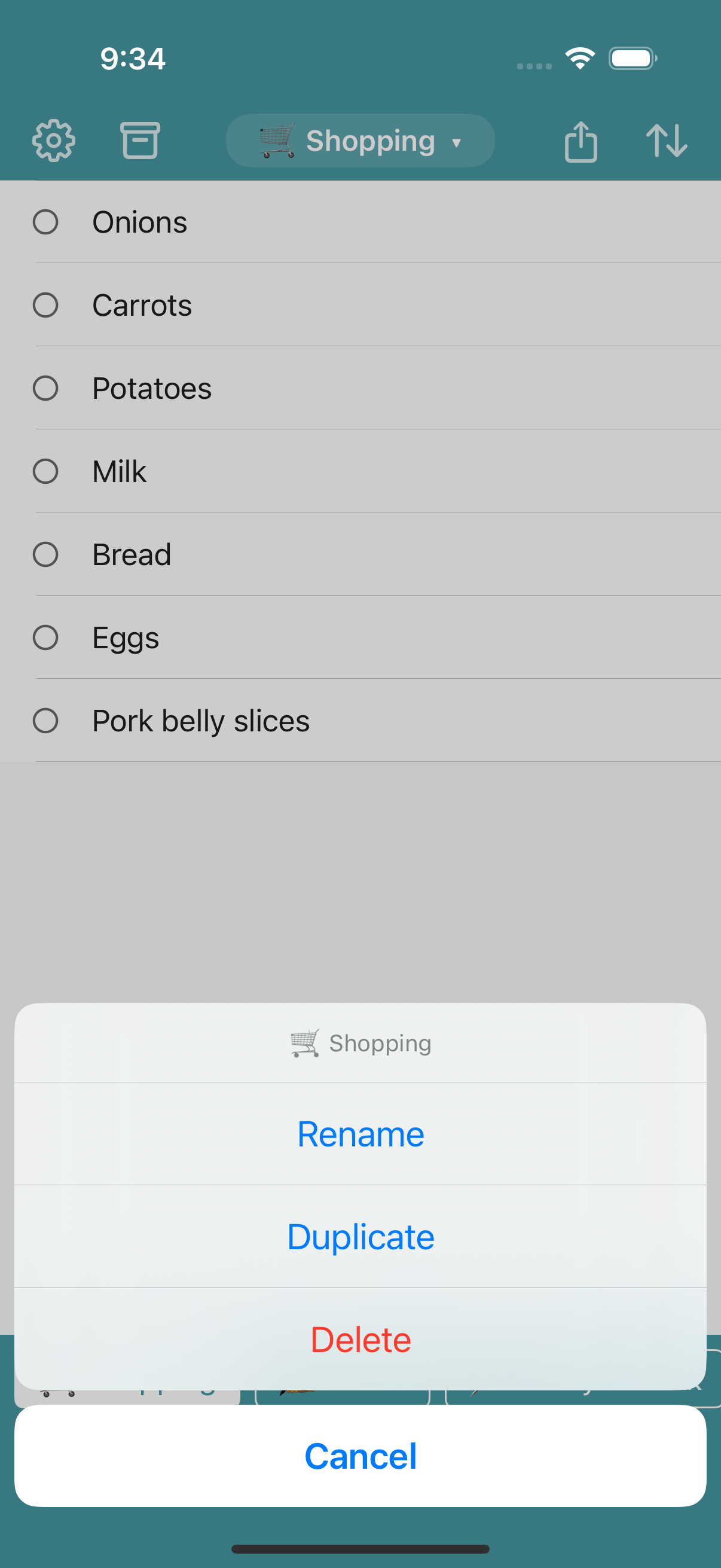
[Tip] Long-pressing a tag opens an action sheet
Long-press a tag button at the bottom of the home screen to show an action sheet.
- Edit: Rename the tag.
- Duplicate: Copy the selected tag and all its notes as a new tag. Useful when you want to manage the same notes under a different category.
- Delete: Delete the tag and all its notes.
[Tip] See notes from every tag at once with All
Select All at the start of the tag row to show notes from every tag in a single list. You can review all of your notes without switching tags — handy when you can’t remember which tag a note went into.
Notes added while viewing All appear at the top of the list. Note that you can’t reorder notes in All view (the order within each tag is preserved).
Note Actions
Q. What happens when I long-press a note?
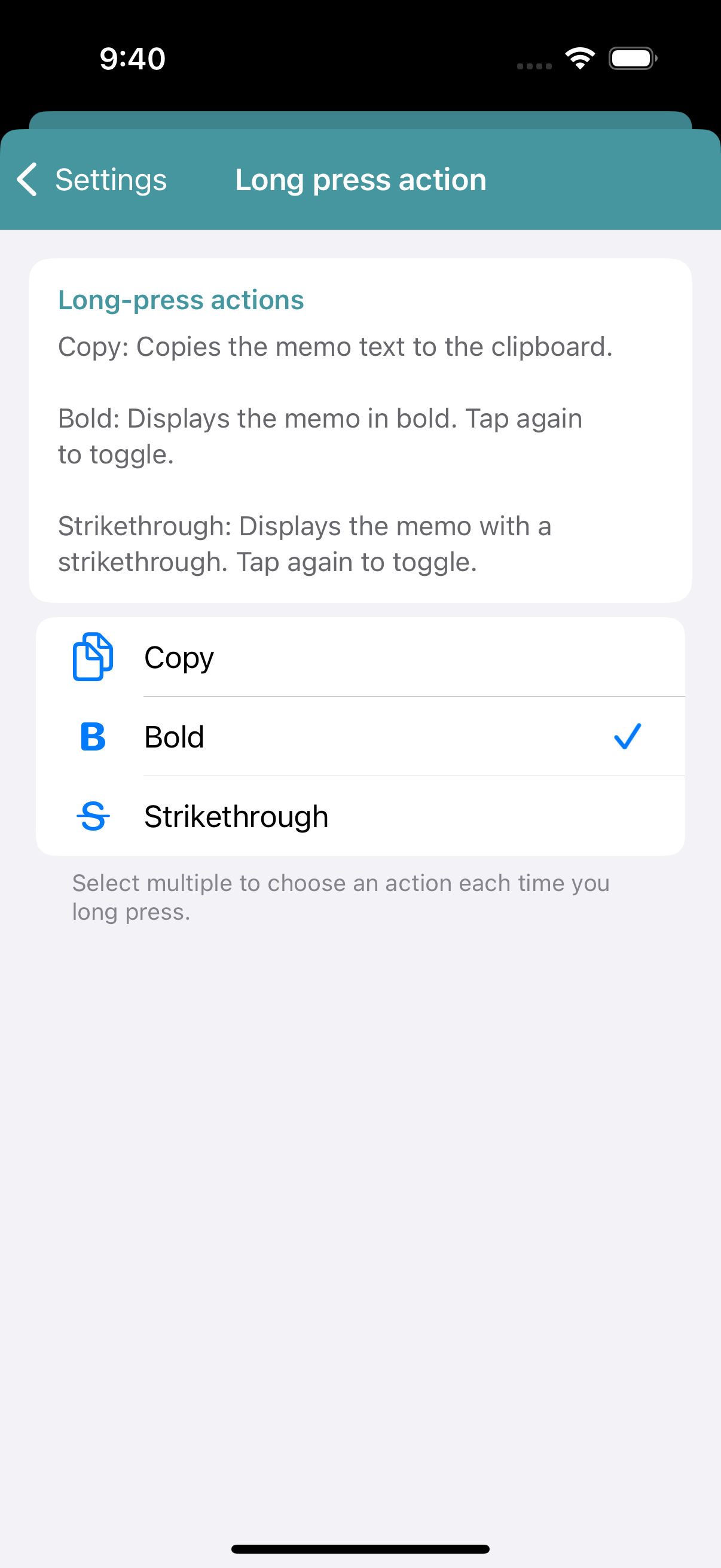
Long-pressing a note immediately applies the action you have configured. The default action is Bold — long-pressing again removes the formatting.
To change the action: Tap the gear icon at the top left → Settings → tap Long Press.
Available actions:
- Copy: Copy the note text to the clipboard.
- Bold: Make the note bold (default).
- Strikethrough: Add a strikethrough to the note.
If multiple actions are selected in settings, long-pressing shows an action picker. If only one action is selected, it is applied immediately.
While you long-press, the target note is highlighted with a border in your theme color, so you can see at a glance which note you’re acting on.
[Tip] Add notes by voice
Tap the microphone button near the note input field to add a note by speaking. Useful when your hands are full, or when you want to enter a long sentence quickly.
How to use: Tap the microphone button → speak while “Recording…” is shown → tap Add to confirm, or Done to finish.
If you’d rather not show the microphone button, you can turn it off in Settings → Show voice input button.
Q. How do I reorder notes?
Tap the up-arrow button at the top right to enter reorder mode. A drag handle appears on the right side of each note. Long-press a handle and drag up or down to change the order. Tap Done at the top right to confirm.Q. How do I apply bold or strikethrough to a note?
When entering a note, a toolbar appears above the keyboard with a B (Bold) and S̶ (Strikethrough) button.
- B: Use to make a note stand out.
- S̶: Use to cross out completed tasks.
The formatting is also visible in the note list after saving.
Q. How do I attach a URL to a note?
Typing a URL directly into a note does not create a link. Use the Share Extension (described below) to attach a URL to a note.Swipe Actions
[Tip] Two swipe modes are available
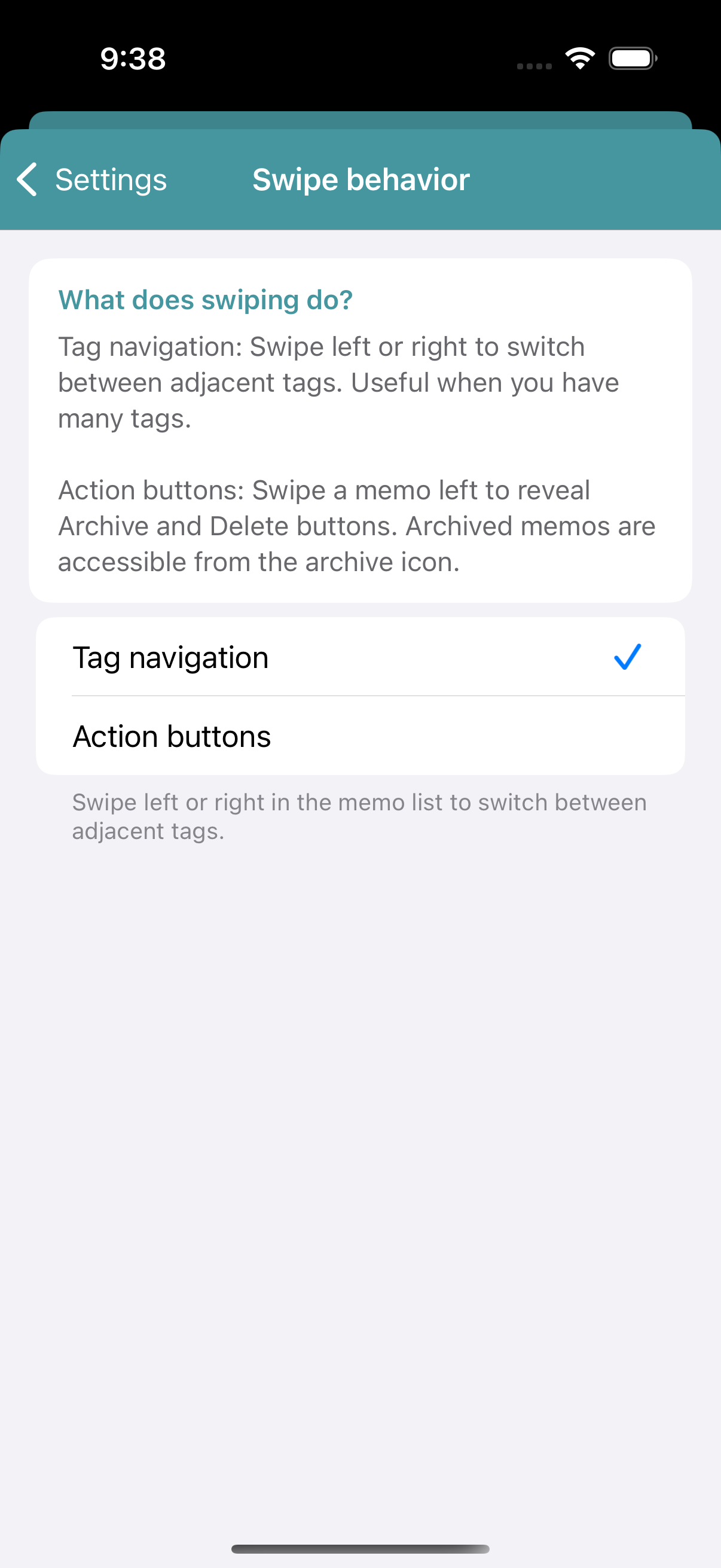
You can choose how a horizontal swipe behaves in the note list.
Setting: Settings → Horizontal Swipe
| Mode | Behavior |
|---|---|
| Switch Tag (default) | Swipe left or right to move to the adjacent tag |
| Action Buttons | Swipe a note left or right to reveal Archive and Delete buttons |
Float Button
Q. What is the float button?
Selecting a note’s checkbox reveals a float button in the lower right corner of the screen. Use it to perform bulk actions on selected notes.
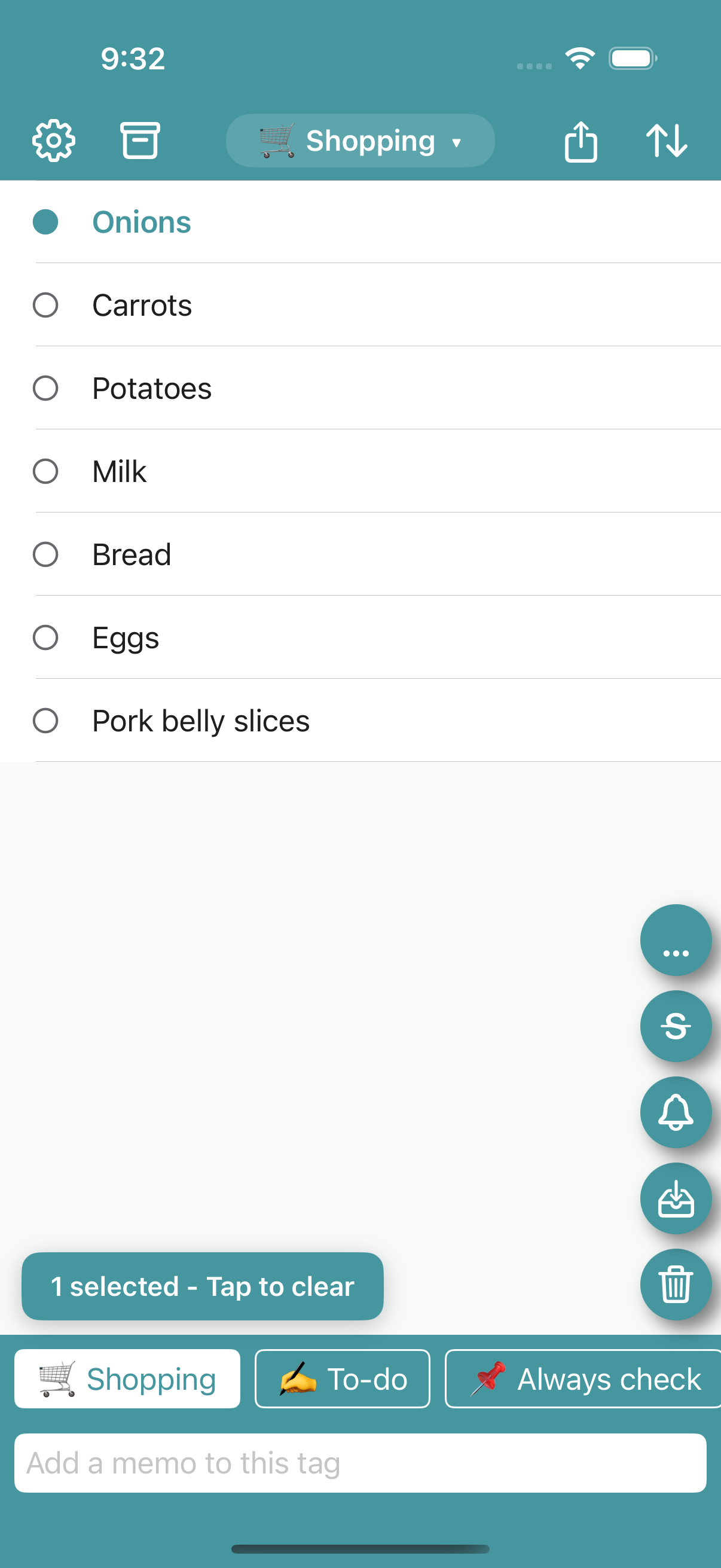
[Tip] The float button is customizable
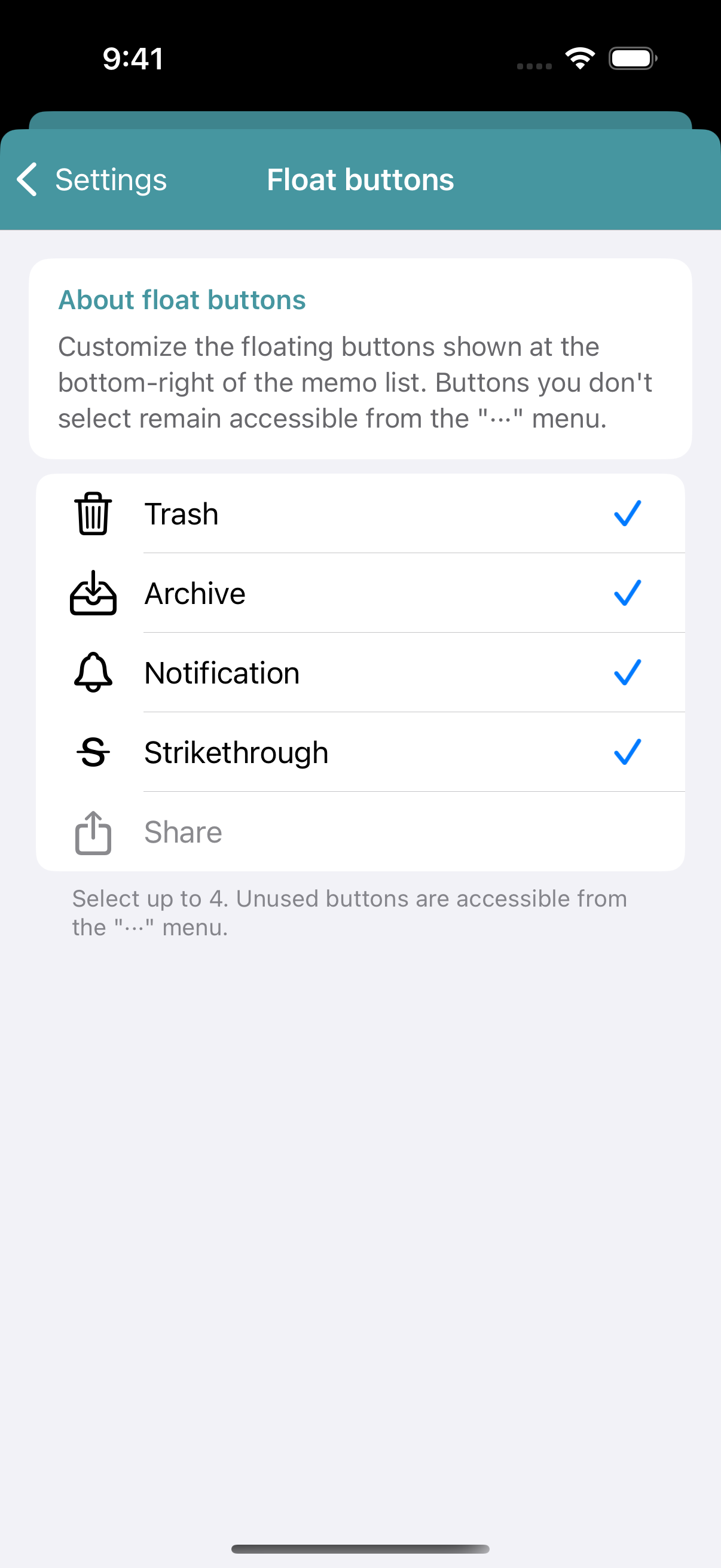
You can choose which buttons to show — up to four.
Setting: Settings → Float Button
Available buttons: Delete / Archive / Notification / Strikethrough / Share
Keep only your most-used buttons visible and tuck the rest into the … menu for a cleaner experience.
Notifications
Q. Are there two types of notifications?
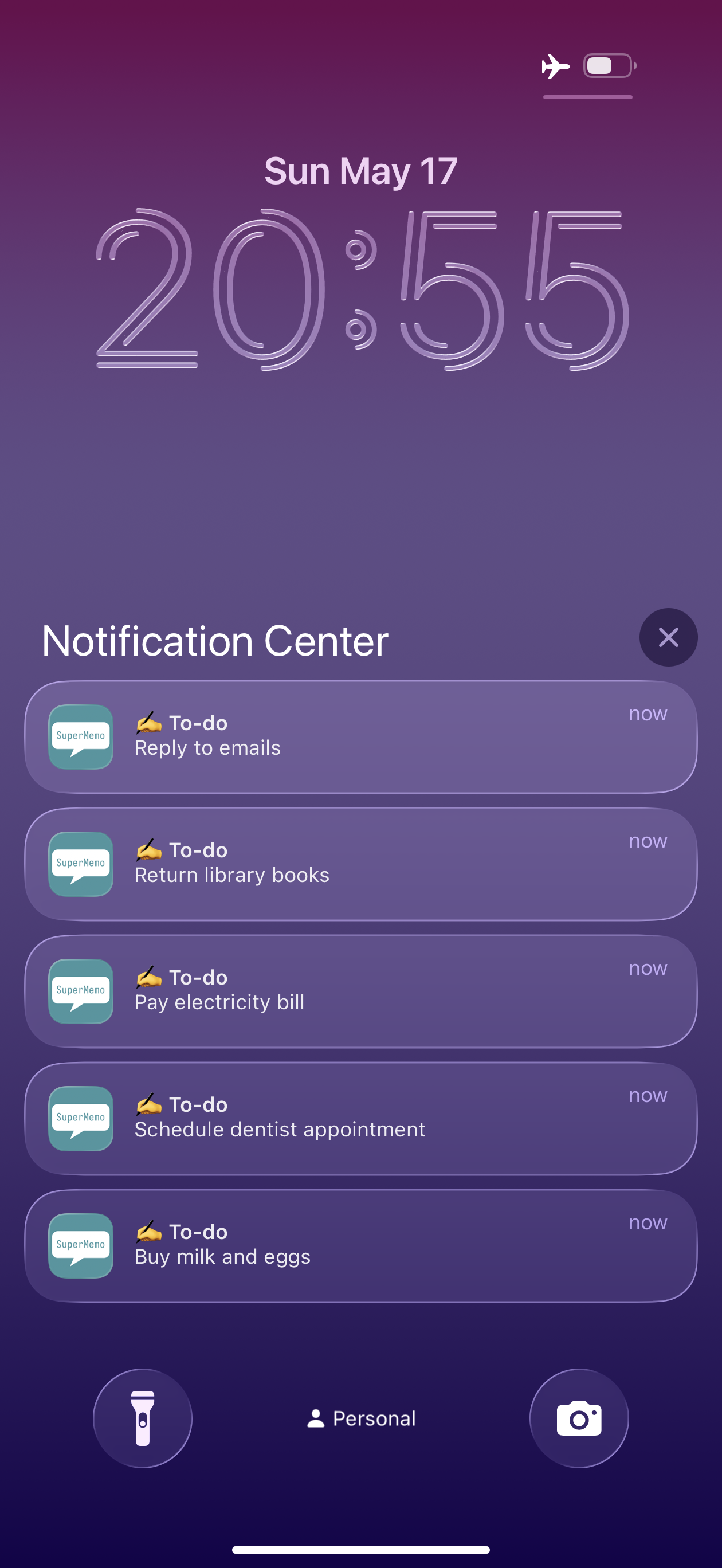
Super Memo has two notification modes: manual and automatic.
Manual: Select a note, then tap the bell icon in the float button → a confirmation alert appears before adding the note to Notification Center.
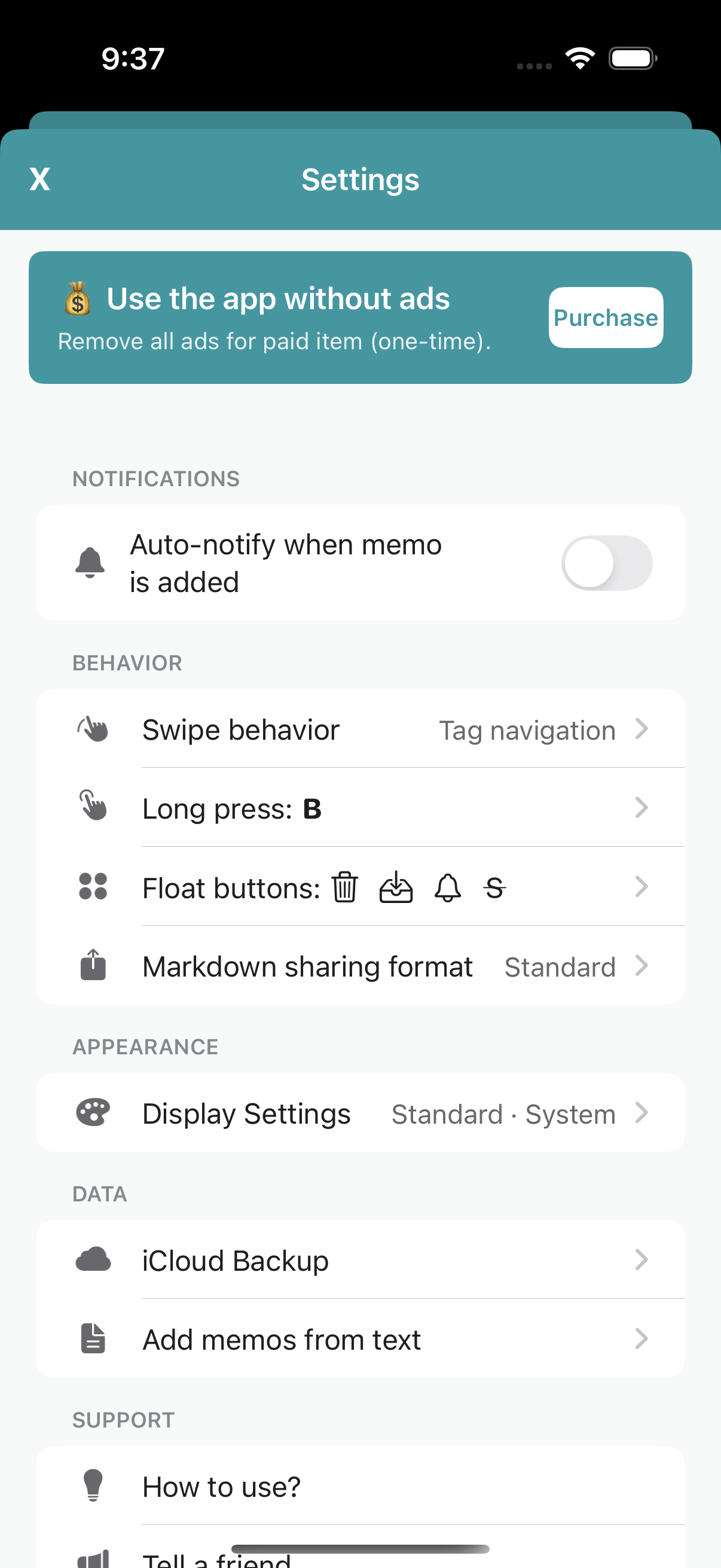
Automatic: Settings → turn on Auto-show in Notification when note is added. Each new note is automatically shown as a notification banner. Editing an existing note does not trigger a notification.
[Tip] Schedule a notification for a specific time (Beta)
The Scheduled Notification feature shows a note in Notification Center automatically at a time you choose (currently in beta). Great for things like “show me this note tomorrow morning.”
How to schedule:
- Select a note’s checkbox → tap the bell (notification) icon in the float button.
- In the menu, choose 🕑 Schedule for a date & time… (“Add to Notification Center now” is the usual instant notification.)
- Set the date and time with the wheel picker, then tap Schedule for this time.
A scheduled note shows a time badge in the list — for example “🕑 Mon 6/16 7:30” — so you can tell at a glance that it’s scheduled.
View, change, or cancel: Settings → Scheduled notifications (Beta) lists your reservations. From each one you can Change date & time, Open memo, or Cancel reservation.
Notes:
- If you delete or archive a note that has a reservation, a warning appears so you can choose to delete it together with the reservation, or keep the note and cancel only the reservation.
- The number of reservations is limited (an iOS constraint). If you reach the limit, cancel reservations you no longer need and try again.
- As a beta feature, the behavior may change. Share your thoughts from Settings → Feedback & Rating.
Q. My scheduled notification doesn't make a sound. How do I enable it?
Scheduled notifications are set to play a sound, but the sound won’t play unless Super Memo is allowed to make sounds on your device. Check the following in order.
- Make sure your device isn’t in Silent (Mute) mode or a Focus mode — sounds won’t play while these are on.
- Settings app → Super Memo → Notifications → make sure Sounds is on — turn it on if it’s off.
- If there’s no Sounds option at all — see the next question (this happens if you’ve kept using the app since an earlier version).
Q. There's no Sounds option on the notification settings screen
Earlier versions of Super Memo didn’t use notification sounds, so on devices that have kept using the app since then, iOS remembers that this app doesn’t use sound and won’t show the Sounds option in Settings. Updating to the latest version doesn’t clear this memory.
To enable sound, delete the app once and reinstall it from the App Store. On reinstall, the notification permission dialog appears first, and allowing it there enables sound (the Sounds option also appears in Settings).
⚠️ Deleting the app erases the notes on that device. Before deleting, be sure to back up via Settings → iCloud Backup, then restore after reinstalling (see the “iCloud Backup” section for the backup steps).
Archive
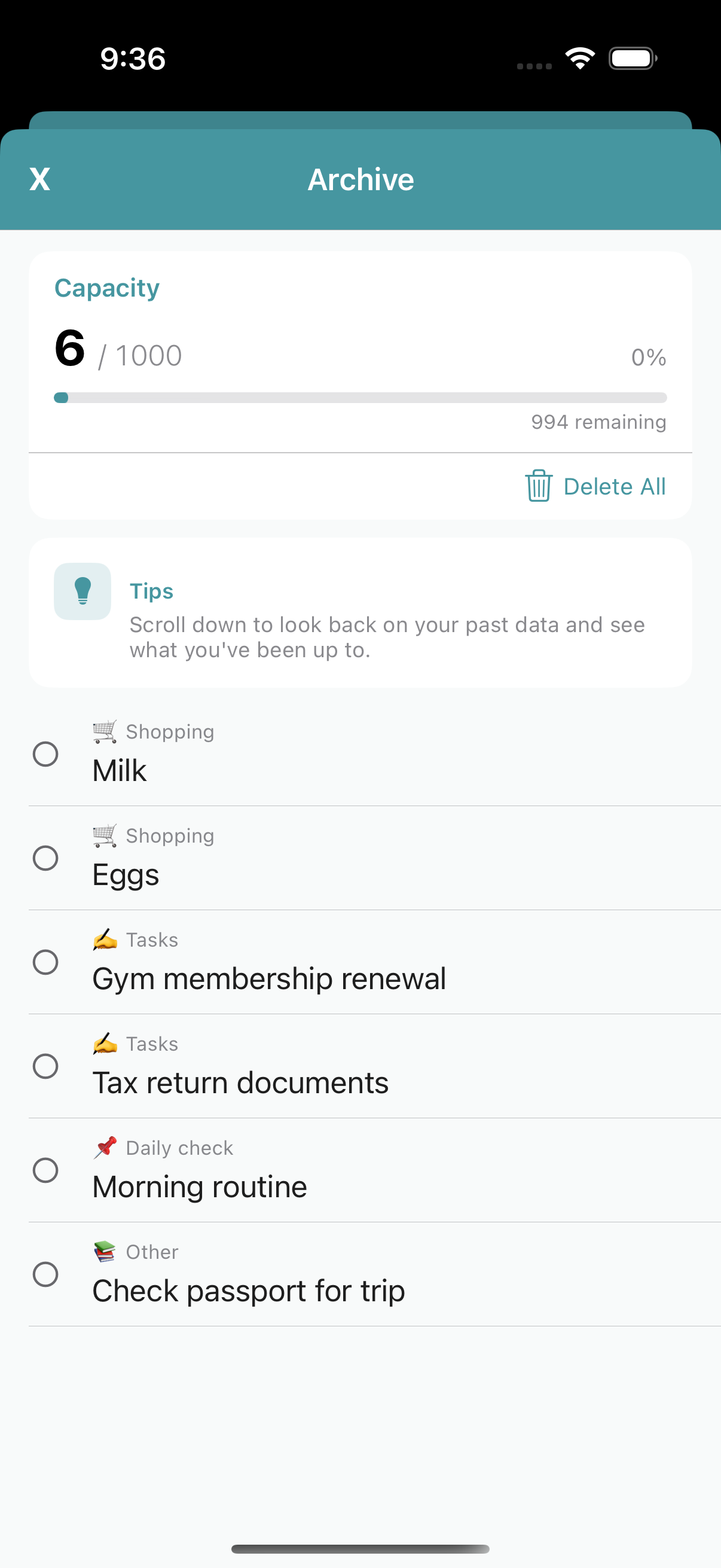
Q. What is the difference between Archive and Trash?
| Feature | Description |
|---|---|
| Archive | Temporarily stores notes. You can view and restore them from the archive button at the top left. |
| Trash | Permanently deletes notes. Deletion cannot be undone. |
Move notes to Archive if you might need them later; use Trash only for notes you no longer need at all.
Share & Import
Q. How do I share notes?
Tap the share button at the top right of the home screen to share all notes in the current tag as Markdown.
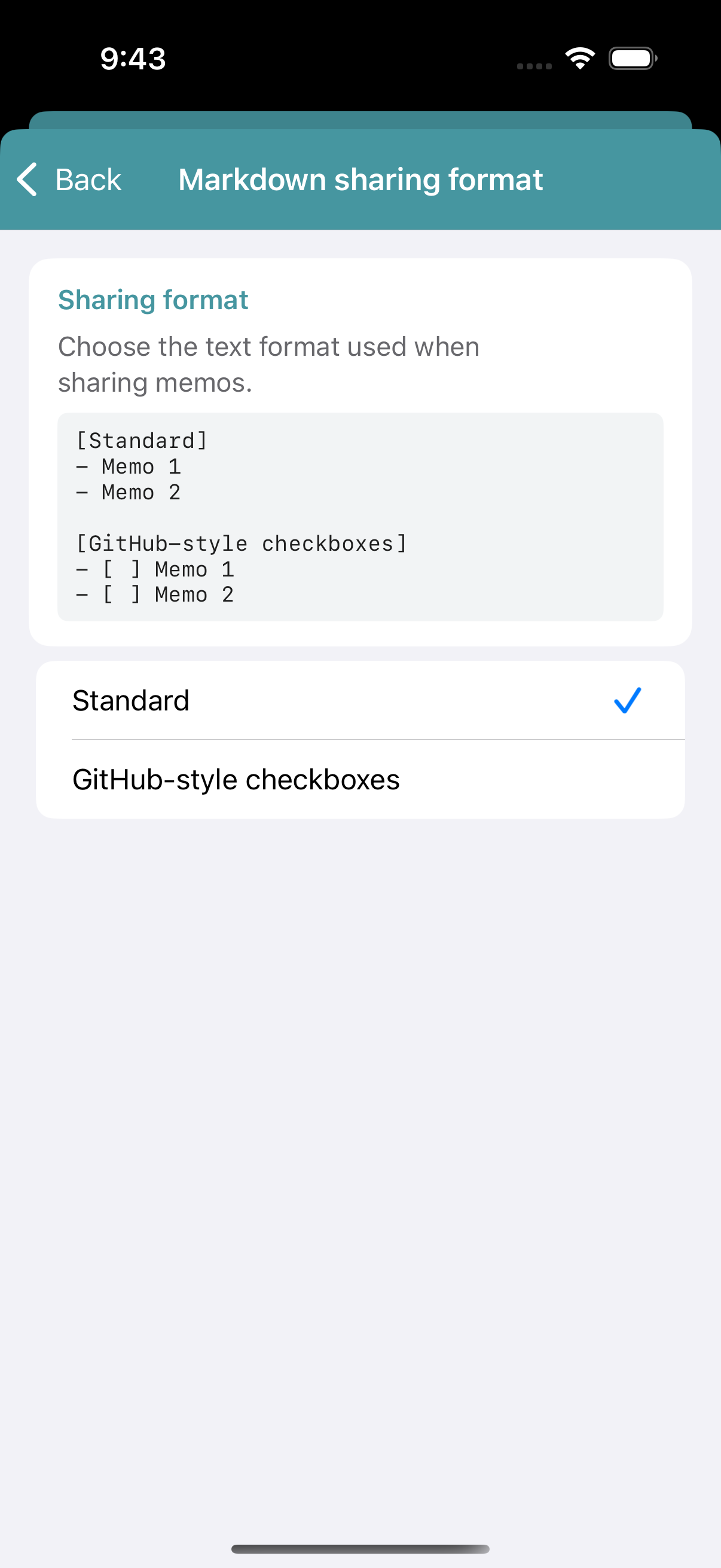
Two Markdown formats are available:
Setting: Settings → Markdown Share Format
| Format | Description |
|---|---|
| Standard | Regular Markdown list format |
| Checkbox | Checkbox list used by GitHub and similar tools (- [ ] format) |
[Tip] Import multiple notes from text or a URL
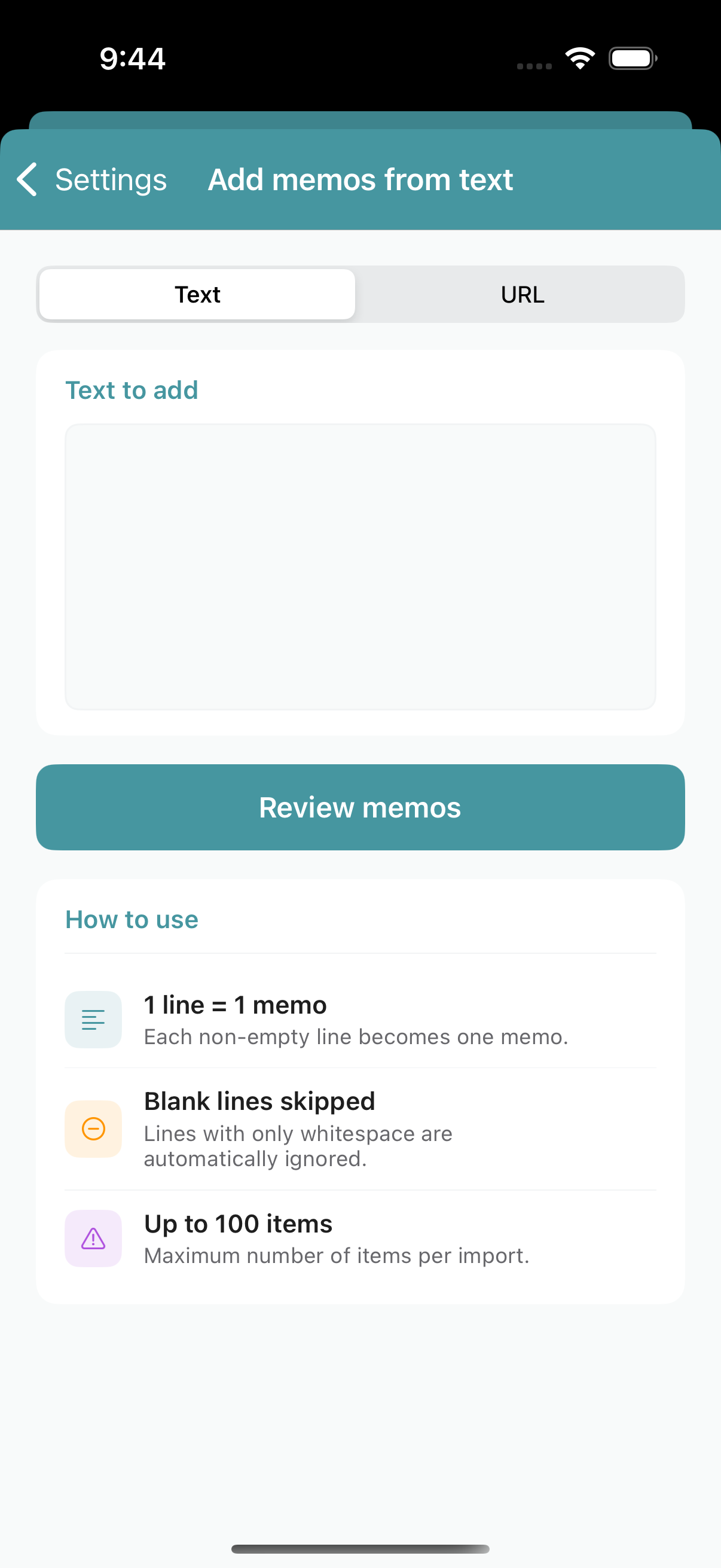
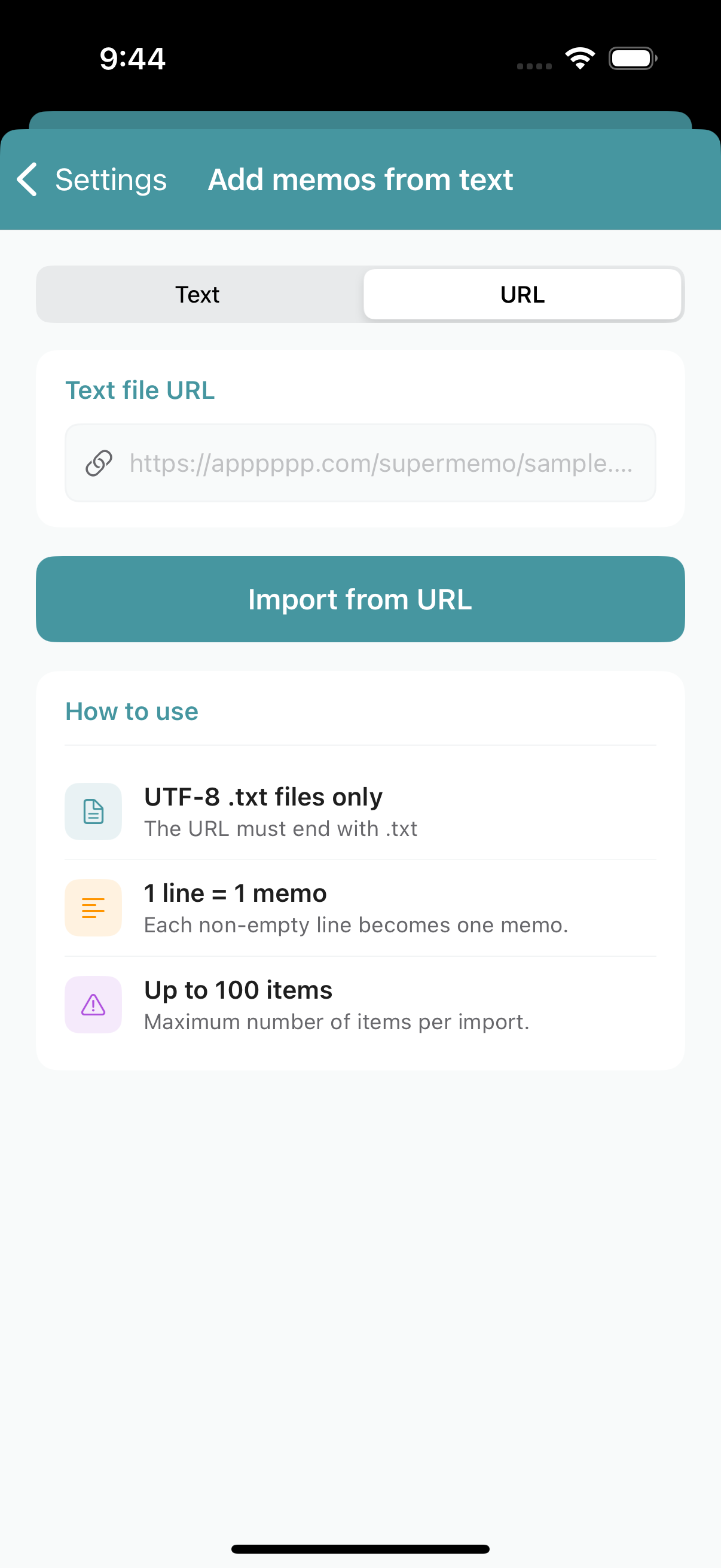
Setting: Settings → Add notes from text
Add notes in bulk — one line becomes one note (up to 100 at a time). You can also enter a URL to fetch text from a web page. After tapping Confirm, select a tag to add the notes to.
[Tip] Add notes directly from other apps (Share Extension)
Send URLs or text from Safari and other apps directly to Super Memo.
How to use: Tap the share button in another app → select the Super Memo icon → choose a tag and tap Add to Notes.
For example, sharing a Safari page attaches the page title as the note and the URL as a link. Tapping that note in Super Memo opens Safari directly.
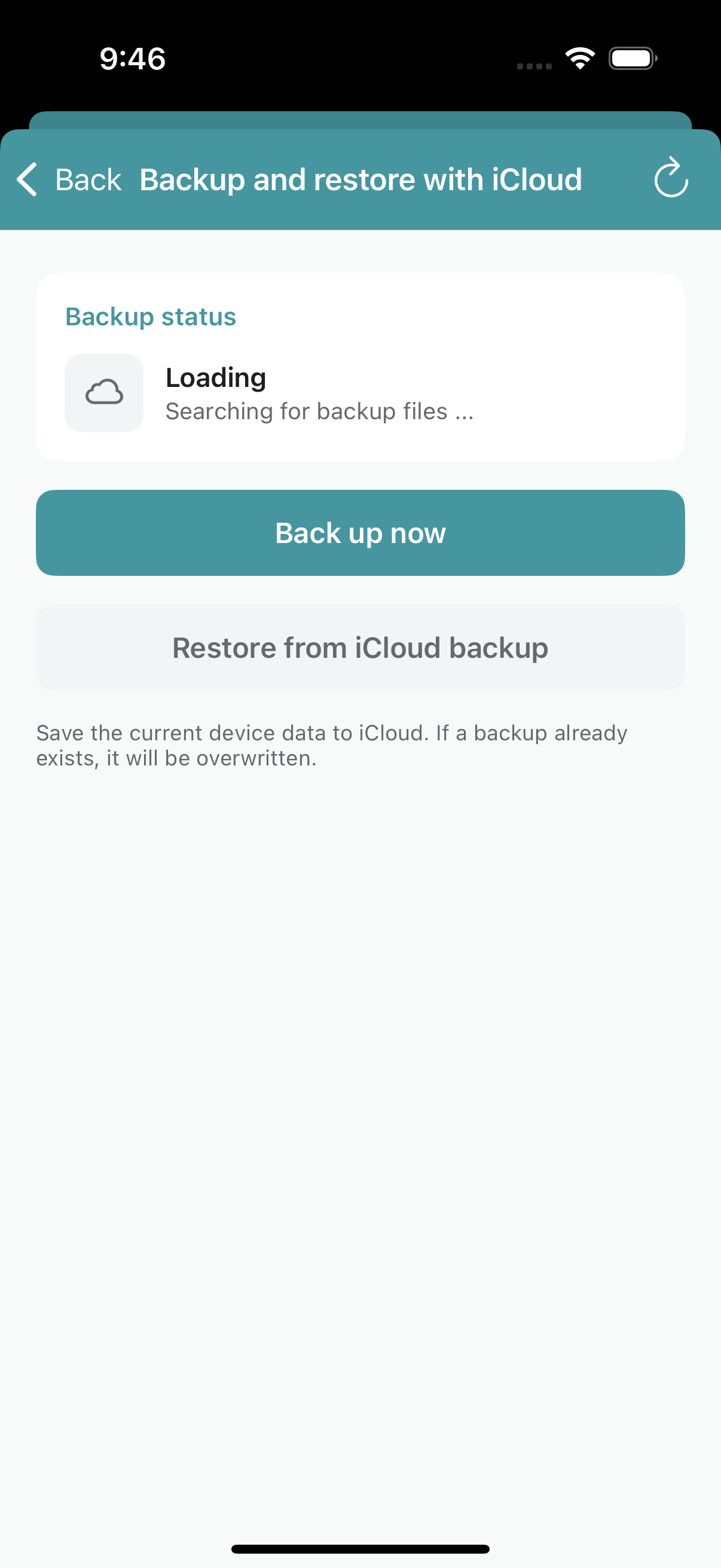
iCloud Backup
Q. How do I back up and restore my data?
Setting: Settings → iCloud Backup
- Backup: Tap Save current data to iCloud.
- Restore: Tap Check iCloud backup (all current notes will be overwritten).
In addition to notes and tags, the backup includes your theme and app settings (preferences). So when you restore, not only your notes but also your app settings return to the state they were in at backup time.
iCloud backup lets you restore your data after deleting and reinstalling the app, or sync data across multiple iPhones. Restoring replaces all current data, so proceed carefully.
Widget
Q. What can the home screen widget do?
Super Memo supports home screen widgets on iOS 17 and later. The widget displays the note list for a selected tag.
- Size: Choose from three sizes.
- Change displayed tag: Long-press the widget → tap the widget → select a tag.
Apple Watch
Q. What can I do on Apple Watch?
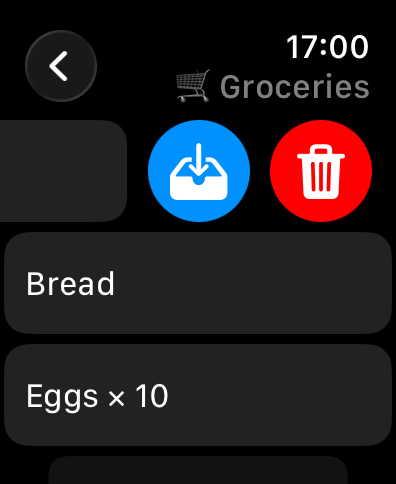
Your iPhone notes automatically sync to Apple Watch so you can check them from your wrist.
- Browse notes: Tag list → tap a tag → view the note list.
- Swipe actions: Swipe a note left to reveal Archive and Delete buttons and act directly from Apple Watch. Changes sync back to Super Memo on iPhone automatically.
Theme & App Icon
[Tip] Changing the theme also changes the app icon
Super Memo lets you change its theme color. When you change the theme, the app icon design updates to match.
Setting: Settings → Display Settings → choose a theme.
Q. Does it support dark mode?
Yes. You can choose the appearance from Follow System, Light, or Dark.
Setting: Settings → Display Settings → choose an appearance mode.
If you choose Follow System, it automatically switches to match your iPhone’s light/dark setting.
Privacy
Q. What is the tracking permission prompt shown at launch?
Super Memo shows ads so it can be offered for free. The “Allow tracking?” prompt shown at first launch is the standard iOS request used to tailor ads to your interests.
You can use all of Super Memo’s features without allowing it. If you don’t allow tracking, you’ll simply see generic ads that aren’t based on your interests.
You can change this choice anytime: iPhone Settings app → Privacy & Security → Tracking → Super Memo’s switch.
Checkbox
Q. What is the checkbox on the left side of a note?
The round button on the left side of each note is not a to-do checkbox — it is a note selection button.
Tapping it selects the note. Once one or more notes are selected, the float button appears at the lower right, letting you archive, delete, notify, share, and more in bulk.
Feedback & Rating
Q. Where can I send requests, report bugs, or rate the app?
Go to Settings → Support → Feedback & Rating. Tapping it lets you choose between Rate on App Store and Send feedback.
- Send feedback: Opens a dedicated form that reaches the developer directly — the surest way to report a bug or request an improvement.
- Rate on App Store: Opens the App Store review screen.
Your input helps shape future updates.